
How Let’s Raise It works
Let’s Raise It helps schools, nonprofit sports programs, clubs and other groups run fundraisers where each participant has their own page and every dollar flows to one organization account.
How it works
Your organization sits at the top, and every team, campaign and participant underneath shares its bank account, branding and rules.
Organization
Run by organization leaders: one bank account, brand and set of rules
Team: Varsity soccer
Run by coaches and team leaders
Campaign: Spring travel fund
Goal, dates, story and a team page
Participants
Each shares a personal page. Parents and guardians can help.
Team: Marching band
Run by coaches and team leaders
Campaign: New uniforms
Goal, dates, story and a team page
Participants
Each shares a personal page. Parents and guardians can help.
Supporters
Give on a participant or campaign page, no account needed
Each team can run as many campaigns as it likes, and a participant can raise money for more than one team under the same login.
Who uses Let’s Raise It
Five kinds of people use Let’s Raise It, and each one sees only what they need. One person can hold more than one role, such as a coach who is also a parent, all under a single login.
| Who | Typical examples | What they come to do | Needs an account? |
|---|---|---|---|
| Organization leader | Athletic director, booster club president, school principal, nonprofit executive director | Sets up the organization once, brings on team leaders, connects the bank account, sees every dollar | Yes |
| Coach or team leader | Head coach, assistant coach, club advisor, troop or band leader, parent volunteer | Builds a roster, launches a campaign, keeps participants active | Yes |
| Participant | Student-athlete, band member, club member, scout | Shares a personal page with family and friends and watches the support come in | Yes, claimed from an invite or join code |
| Parent or guardian | Mom, dad, grandparent, legal guardian | Helps a young participant reach their people | Yes, linked to the participant |
| Supporter | Grandparents, neighbors, family friends, local businesses | Gives quickly and gets a receipt | No |
You can rename “team” and “player” to fit your group, for example “program” and “member”, and the app uses your words throughout.
Organization leaders
The organization leader sets things up once, and every team and campaign underneath inherits the same bank account, branding and rules. Think of the athletic director of a high school, the president of a youth league, or the director of a community nonprofit.
Setting up your organization
- Create your organization profile with your name, logo and colors.
- Add your tax details. Nonprofits can enter their EIN and confirm 501(c)(3) status, so supporters get tax-deductible receipts.
- Connect your bank account through Stripe. Every gift from every team goes to this one account. Coaches never see or touch banking details.
- Choose your policies: whether participant pages are public, whether Let’s Raise It may send text messages for you, age protections, and how long supporter data is kept.
Bringing on coaches and team leaders
- Create your teams, or let a trusted coach create their own.
- Invite coaches with a link or code. Each invite can give access to one specific team, or allow the coach to start a new team themselves.
- Review and approve requests from people who ask to join.
- Each coach sees only the teams they run. A volleyball coach can’t open the soccer team’s campaigns.
Keeping an eye on everything
- See every team and campaign across the organization, with totals raised and who runs each one.
- Open any campaign to adjust settings, manage the roster, or match an unassigned gift to the right participant.
- Track payouts and download reports and spreadsheets for your treasurer or business office.
- If you step down, hand the leader role to someone else from your settings.
Organization leaders are the only people who can see payouts and banking.
Coaches and team leaders
Coaches and team leaders do the day-to-day fundraising work, and the app is built so they can do it from a phone between practices or rehearsals. Examples include a varsity coach, a robotics club advisor, a choir director, or a parent who volunteers to run the fundraiser.
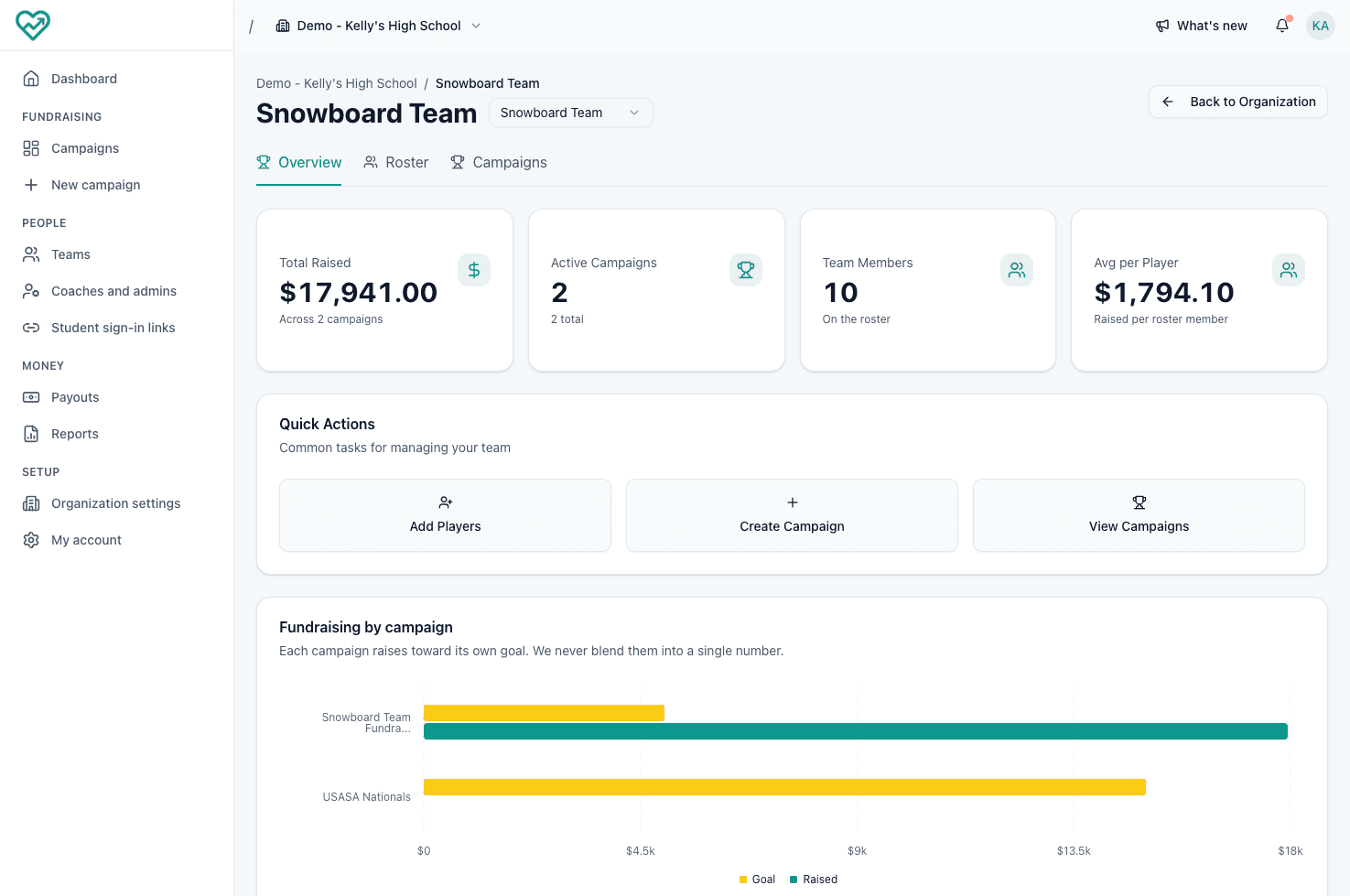
Building your roster
- Add participants one at a time, paste a list, or upload a spreadsheet.
- Adding someone to the roster does not email them or enter them in a campaign until you choose to.
- The same participant can be on more than one team, such as track in spring and soccer in fall.
Launching a campaign
- Give the campaign a name, a goal and start and end dates.
- Tell your story. The app can write a first draft for you to edit.
- Add a cover photo and colors.
- Choose who from your roster is fundraising.
- Review and launch. Your campaign page and every participant’s page go live right away.
Getting participants on board
- Send invites so each participant claims their own page.
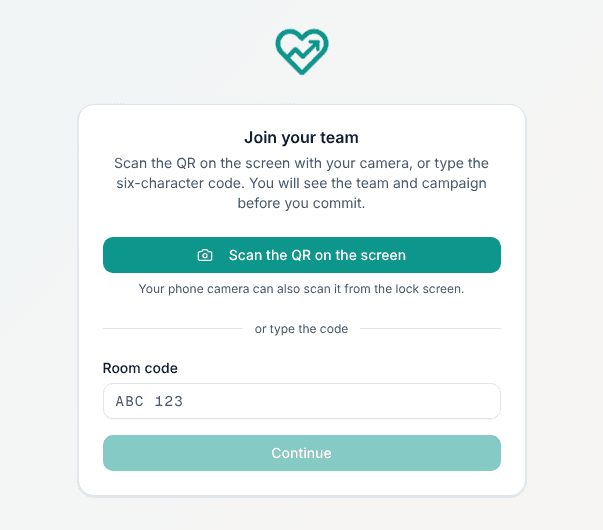
- At a kickoff meeting, put a QR code or six-character room code on the screen. Participants scan or type it on their phones and land on a live page.
- See who has claimed their page, and send a friendly reminder to anyone who hasn’t started.
- If someone joins through the shared link without being on your list, you’re notified and can remove them before they receive gifts.
During the campaign
- Watch gifts arrive in a live feed on your team page.
- See a leaderboard of top fundraisers, by dollars or by number of supporters.
- Match a gift that came in without a participant name to the right person.
- If you run more than one team, switch between them with one tap.
Anyone who creates a campaign can manage that campaign, even if they aren’t the team’s coach.
Participants
Participants are the heart of every campaign: each one gets a personal page and asks their own people for support. They might be a student-athlete, a marching band member, a debate team member, or a scout.
Getting started
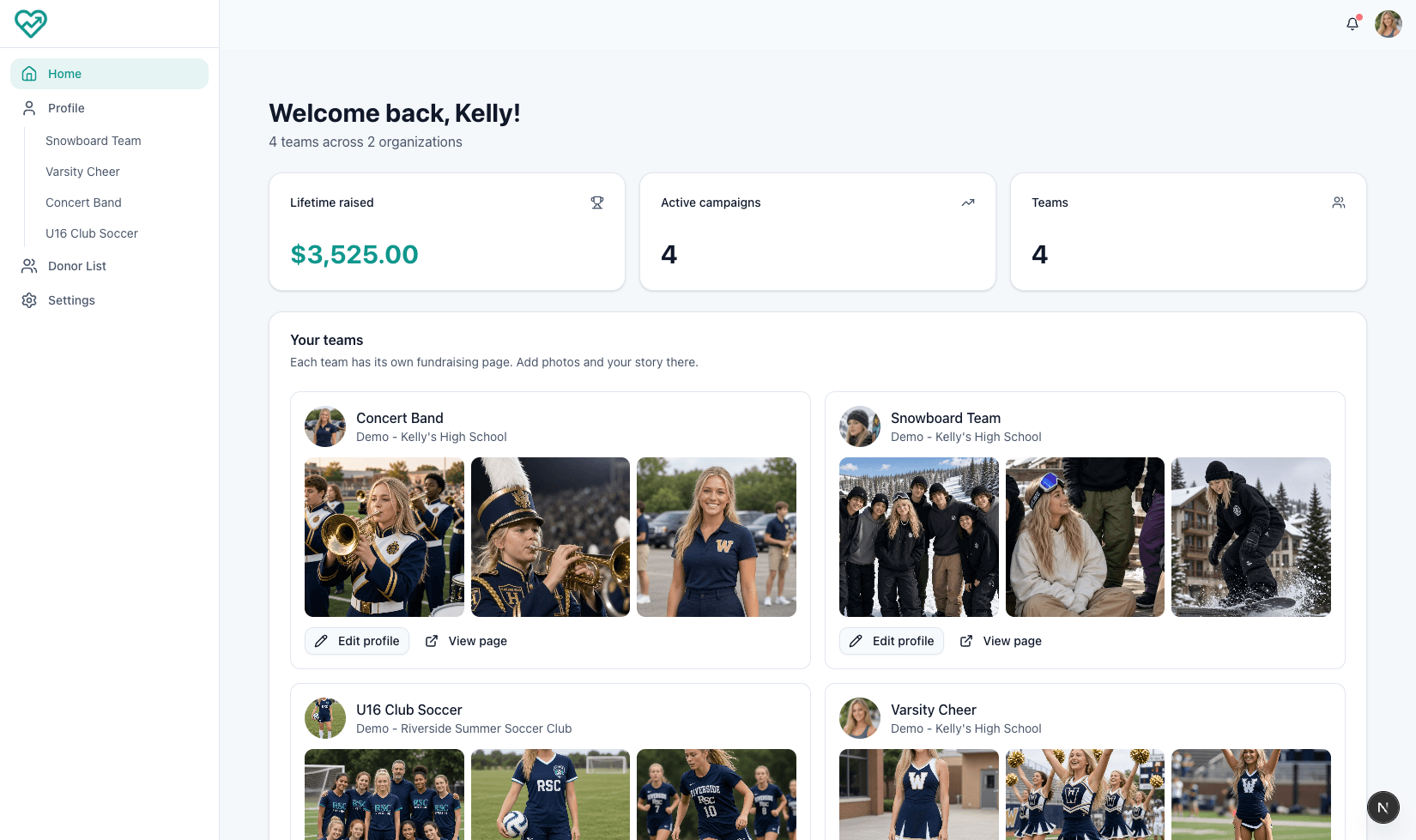
- Claim your page from your coach’s invite, or by scanning the code at a kickoff meeting.
- Pick a personal handle, add a headshot and photos, and write your story. The app can draft your story in your own voice for you to edit.
- If you raise money for more than one team, all your pages live under one login.
Reaching your people
- Build a list of the people you want to ask: family, neighbors, family friends, coaches from past seasons.
- The app drafts a personal message for each person. You edit it, then send it from your own phone by text or by email, so it comes from you and not from a company.
- You can see when someone opens your link, so you know who to follow up with.
- Send one personalized update or thank-you note to all your supporters at once.
Watching it come in
- Your home shows a live feed of gifts, your personal total, and where you stand on the team leaderboard.
- Each new gift gets a small celebration, and you can share milestone cards on social media.
Participants see only their own page, contacts and supporters. They can’t change campaign settings or see other participants’ contact lists.
Parents and guardians
A parent or guardian can be linked to a participant and share in their outreach: contacts, messages and supporters. This matters most for younger participants, whose parents often know the people most likely to give.
How it works
- The participant, or another linked parent, sends an invite by email.
- The parent accepts, agrees to the parent terms, and signs in or creates an account.
- The parent now shares the participant’s contact list, messages and supporter list.
What parents can do
- Add contacts and send personal messages to their own friends, coworkers and relatives.
- Watch gifts arrive and thank supporters.
- Encourage the participant to keep their page and story fresh. Editing the page itself stays with the participant.
- Manage several children from one login, such as three kids on three different teams, and switch between them.
Parents don’t need to belong to the organization, and they can’t change campaign or team settings.
Supporters
Supporters give in about a minute, without creating an account. They’re the grandparents, neighbors, family friends and local businesses who get a text, email or social post from a participant.
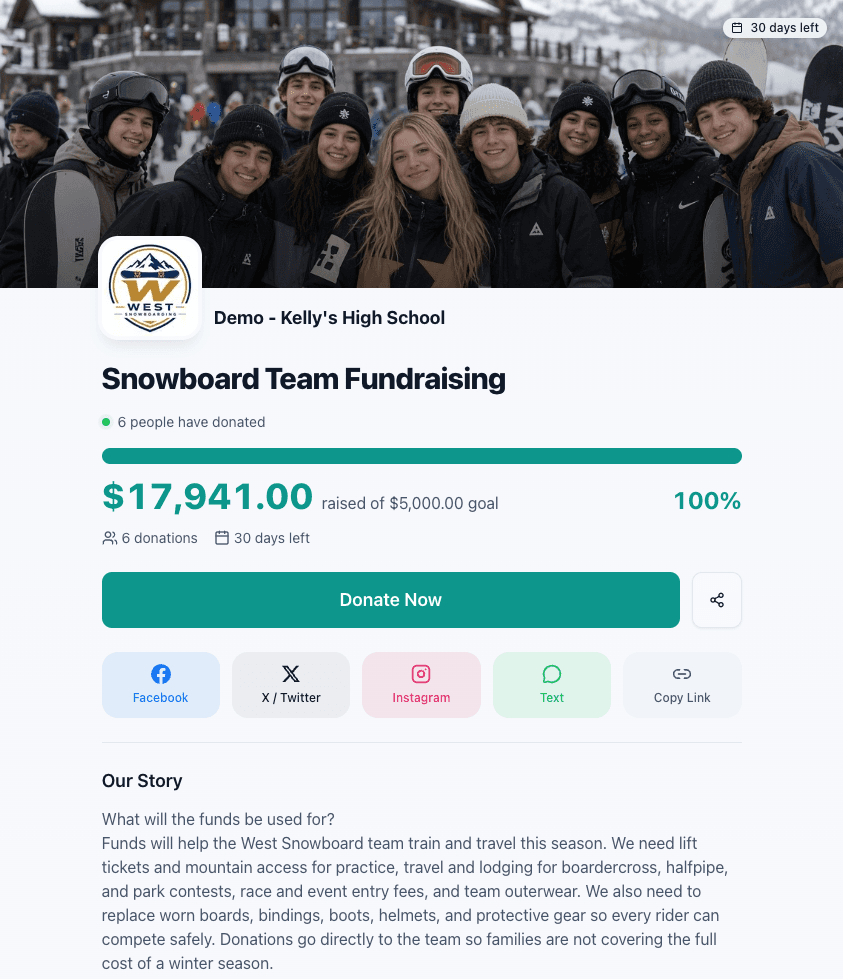
What a supporter sees
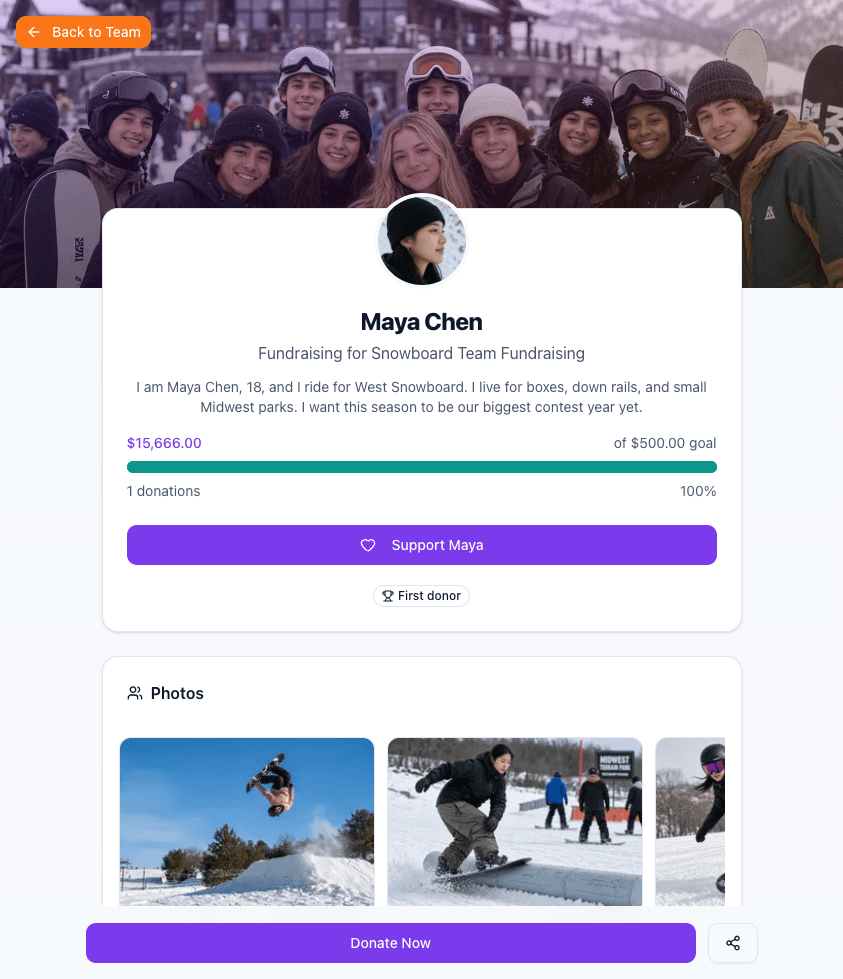
- A link that opens the participant’s own page, with their photo, story and personal total, or the team’s campaign page with a live progress bar and top fundraisers.
- The team, the goal and the end date, so they know exactly what they’re supporting.
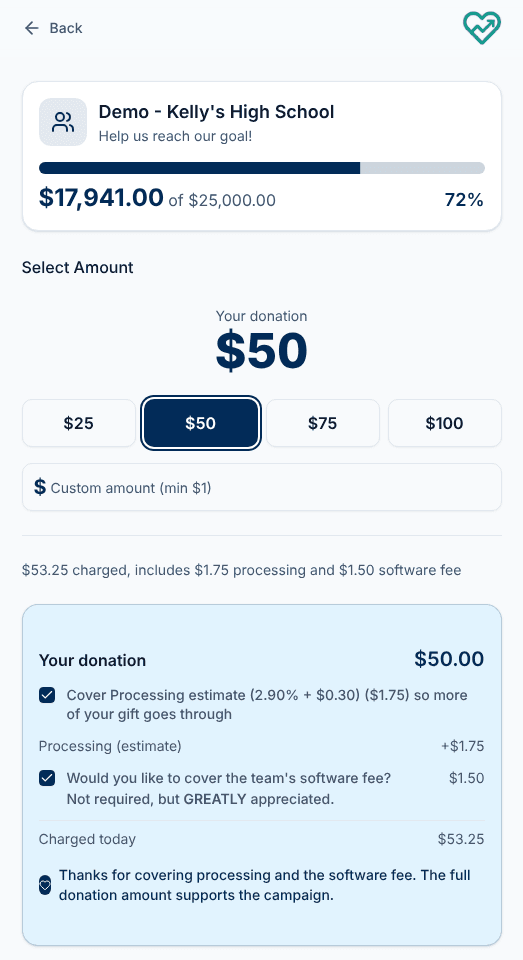
- A clear breakdown of any fees before they pay, with the option to cover them so the full gift reaches the group.
Giving
- Choose an amount and add an optional message.
- Pay with Apple Pay or a card.
- Get an instant email receipt. For registered nonprofits, the receipt includes tax-deductible wording.
Supporters can choose to get updates from the fundraiser. That box is never checked for them. They never see the organization’s or coach’s tools, and their personal details stay private.
Who can do what
Each person’s access follows their role, so nobody sees more than they need.
| Task | Organization leader | Coach or team leader | Participant | Parent or guardian | Supporter |
|---|---|---|---|---|---|
| Set up the organization, branding and policies | Yes | No | No | No | No |
| Connect the bank account, see payouts and reports | Yes | No | No | No | No |
| Invite and approve coaches | Yes | No | No | No | No |
| Create a team | Yes | If the leader allows it | No | No | No |
| Manage a team's roster | All teams | Their own teams | No | No | No |
| Create, edit and launch campaigns | All teams | Their own teams | No | No | No |
| Match an unassigned gift to a participant | Yes | Their own teams | No | No | No |
| Edit a personal fundraising page | No | No | Their own | No | No |
| Manage contacts and send personal messages | No | No | Their own | For their child | No |
| See gifts and thank supporters | All teams | Their own teams | Their own | For their child | No |
| Give | Yes | Yes | Yes | Yes | Yes, no account needed |
A person who holds more than one role, such as a coach who also has a child fundraising, gets the combined access of both.